Technology Resources
The CITL offers comprehensive support for instructors, featuring Canvas guides and videos, resources on collaborative and interactive platforms, video conferencing and recording tools, and access to our media production studio. Explore these tools to enhance your teaching and engage your students effectively.

TROUBLE SHOOTING TIPS
NEED ADDITIONAL ASSISTANCE?
Contact the CITL by phone or submit a ticket.
Phone: (850) 729-6464
Tickets: [email protected]
CidiLabs
This time-saving set of tools helps course designers rapidly build and style eye-popping Canvas courses that make learning engaging and accessible for all students.
Click here to access the DesignPLUS Training Course.
UDOIT is a course level accessibility checker that scans online course content, identifies possible accessibility issues, and guides course designers and instructors in repairing those issues using inclusive design principles – all from within the UDOIT interface.
Click here to access the UDOIT Training Series.
Collaborative Platforms
GitMind is a web-based mind mapping and brainstorming tool that allows users to create visual representations of ideas, concepts, and information.
Miro is a collaborative online whiteboard platform that is designed for various purposes, including brainstorming, ideation, project management, and visual collaboration.
Padlet is an online collaborative platform that provides users with digital “walls” or boards where they can create, organize, and share content in a visually appealing and interactive format.
Interactive Learning and Assessment
Kahoot is an interactive learning platform that allows educators, trainers, and presenters to create and host quiz-style games, surveys, and interactive presentations.
Perusall is an educational technology platform that can be integrated with Canvas and is designed to enhance reading and discussion assignments by making them more interactive and collaborative.
Poll Everywhere is an interactive polling and audience response platform used in various educational settings.
Socrative is an educational technology tool that provides teachers with a platform for creating and delivering quizzes, assessments, and other interactive activities to engage students in the learning process.
Video Conferencing and Recording
NWFSC is transitioning from Kaltura to Canvas Studio. CITL will offer labs throughout March to train faculty on using Canvas Studio. Visit the Events page for training times and locations.
If you are not able to attend in-person or virtually, a 90-minute training course is available through Canvas by following these steps:
- Go to Canvas
- Click on the Welcome to NWF link
- Click on Training Services Portal
- Click the Products tab
- Enroll in the Canvas Studio on-demand course
Zoom is a popular video conferencing and online meeting platform that enables individuals and groups to communicate and collaborate remotely via video and audio calls, chat, and screen sharing.
Instructional Videography Resources
 Elevate Your Course Videos: Scripting and Storyboarding for Success
Creating engaging video content is key to a successful online course, and careful planning before you shoot can make all the difference. Two powerful tools for this are scripting and storyboarding
Scripting for Clarity
Writing a script for your course videos helps you organize your thoughts and ensures you cover all essential information clearly and concisely. This preparation will make your shoot much smoother and your delivery more confident.
Storyboarding for Visual Engagement
Want to boost student engagement and make your content more memorable? Consider creating a storyboard. A storyboard is a visual outline of your video that allows you to plan what you’ll say and what visuals you’ll show. This could include:
- Images: Photos of books, relevant artwork, diagrams, or charts that illustrate your points.
- Graphics: On-screen text, animations, or data visualizations to highlight key information.
- Video Clips: Short supplemental videos that demonstrate concepts or provide context.
Visuals are crucial for keeping students engaged and helping them better understand complex topics. Storyboarding helps you integrate these visuals seamlessly into your video content. You can create a storyboard by hand-drawing it or by using digital applications. Canva, a free online graphics tool, offers helpful storyboard templates to get you started.
Need Help?
In today’s online learning environment, effective instructional technology is more vital than ever. If you’d like assistance with scriptwriting or pre-production for your course videos, please fill out this form: https://forms.office.com/r/66dedcQebi
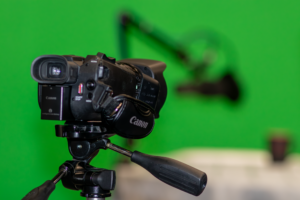
This section focuses on the tools that will elevate the quality of your course videos, ensuring a professional and engaging experience for your students.
Canvas Studio: Your All-in-One Recording Solution
Canvas Studio is the primary recording application recommended for faculty and staff. It’s a versatile tool that allows you to:
- Record Video: Capture your presentation directly.
- Record Audio: Ensure clear narration and explanations.
- Record Your Screen: Ideal for demonstrations, software tutorials, or presenting slides.
- Direct Upload to Canvas: Seamlessly integrate your content into your course.
Enhance Your Audio and Video Quality
While Canvas Studio is powerful, external equipment can significantly improve your production quality:
- External Webcam: For superior video clarity compared to built-in laptop cameras.
- External Microphone: Highly recommended for achieving crisp, professional audio. This is perhaps the most impactful upgrade you can make.
- USB Microphones: If you’re recording directly from your computer using software like Canvas Studio, a USB microphone offers excellent plug-and-play convenience and high-quality sound.
- External Microphones for Cameras/Smartphones: (The original text cut off here. Assuming it was going to recommend an external mic for these devices too, such as a lavalier or shotgun mic.) If you are using a dedicated camera or smartphone for shooting, consider a lavalier microphone (clip-on) for clear audio of yourself, or a shotgun microphone for broader sound capture.
Professional Studio Production
For a polished, studio-quality production, our dedicated team is here to help.
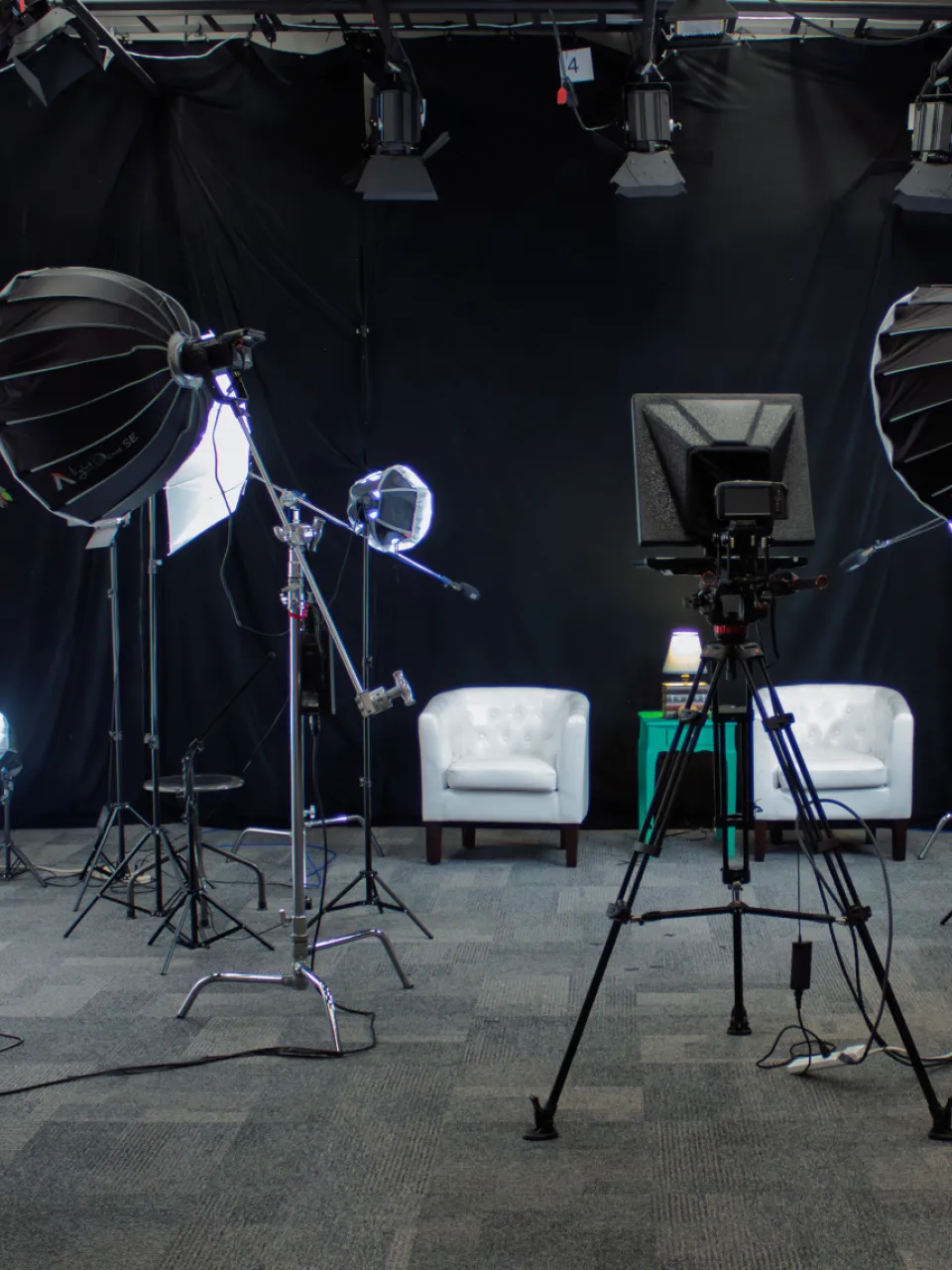
- Shoot in Our Studio: If you’d like to utilize our professional studio environment, please reach out to the Center for Innovative Teaching and Learning (CITL) department.
To request studio time or for further pre-production assistance, please fill out this form: https://forms.office.com/r/66dedcQebi
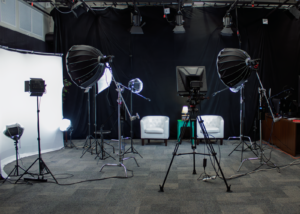 Great lighting and a well-composed shot can transform your course videos, making them look more professional and keeping your students focused.
Harnessing the Power of Light
Natural light is your best friend. Try setting up your camera near a window. The soft, diffused light from a window can naturally illuminate your face, eliminating harsh shadows and unflattering colors. It creates a warm, inviting look without needing extra equipment.
If natural light is limited in your recording space, a lighting kit is a smart investment.
- For Desk Recordings: If you’re recording from your desk, a desk softbox lighting kit is highly recommended. These compact kits provide soft, even light that’s perfect for close-up shots and can easily be found on Amazon.
- For Standing Lectures: If you’ll be delivering a lecture while standing, opt for a lighting kit with a full-length tripod. This will ensure consistent and flattering illumination across your entire setup.
Lighting kits are incredibly versatile and essential for any space that lacks sufficient natural light, ensuring you always look your best on camera.
Crafting a Clean Background
Your background plays a crucial role in how professional your video appears. Always aim for a simple and uncluttered background. Avoid having too many objects or distracting elements behind you, as they can draw your viewers’ attention away from what you’re saying. A plain wall, a bookshelf with neatly organized items, or a subtle decorative element can work well. The goal is to keep the focus squarely on you and your content.
Need a Hand with Your Shoot?
If you need assistance with shooting your course content, whether it’s setting up your lighting, framing your shots, or anything in between, we’re here to help! Please fill out this form to get started: https://forms.office.com/r/66dedcQebi
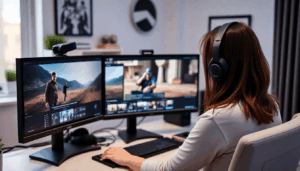 Once you’ve captured your footage, editing transforms raw clips into polished, professional learning experiences.
Professional Editing Assistance
The Center for Innovative Teaching and Learning (CITL) Team at Northwest Florida State College is here to support faculty with their video editing projects. Whether you need help with basic cuts, adding graphics, or refining your audio, their expertise can significantly enhance your final product.
To submit a video editing request, please fill out this form: https://forms.office.com/r/66dedcQebi
Recommended Videography Equipment for Home or Office Recording
For those recording from home or your office, investing in a few key pieces of equipment can drastically improve the quality of your video and audio. Here are some recommendations, with links to common online retailers for convenience:
Lighting:
- Desk Softbox Lighting Kits: Ideal for illuminating yourself when seated at a desk, these compact kits provide soft, even light, reducing harsh shadows.
- Full-Length Lighting Kits: For standing presentations or when you need broader illumination, these kits typically include tripods to position lights effectively.
- Ring Light for Smartphone Recording: Excellent for flattering facial lighting, especially when recording directly with your smartphone.
Audio:
- USB Microphones: (Recommended for recording via a computer) These microphones plug directly into your computer and offer significantly better sound quality than built-in laptop microphones.
- Lavalier Microphones: (Recommended for recording with a smartphone or camera) These small, clip-on microphones are discreet and excellent for capturing clear audio of your voice, especially when you’re moving. Look for models compatible with your specific smartphone or camera.
- Search for Lavalier Microphones on Amazon (Note: Ensure compatibility with your device, as some require specific adapters.)
Stability:
- Smartphone and Camera Tripods: Essential for stable, professional-looking footage. Tripods eliminate shaky video and allow you to set up your shot precisely.
Self-Editing Your Videos (Optional)
While the CITL team offers editing support, some faculty may prefer to do basic edits themselves. Many user-friendly video editing software options are available, some even for free. Consider exploring tools like:
- iMovie (Mac users): A free and intuitive editor for Apple devices.
- Clipchamp (Windows users/Web-based): A free, web-based editor by Microsoft that’s easy to use.
- DaVinci Resolve (Free version available): A powerful, professional-grade editor with a free version that offers extensive features.
- Wondershare Filmora / CyberLink PowerDirector: Popular choices for beginners and intermediate users, offering a good balance of features and ease of use (paid software, often with free trials).
Remember, even simple edits like trimming dead air, adding intro/outro slides, and balancing audio levels can make a big difference in the viewer’s experience.